🎮

Gamepad Tester

Advanced Controller Diagnostics â€ĸ Health Score â€ĸ Drift Detection

No Controller
⚉ Buttons: 0
âŒ–ī¸ Axes: 0
⛁ Latency: --ms
🎮

Connect Your Controller

Choose your connection type and press any button on your gamepad to start testing.

Player 1
Waiting...
🎮
Connect Controller #1
Press any button to connect
Player 2
Waiting...
🎮
Connect Controller #2
Press any button to connect
â„šī¸

Controller Info

Name
--
Type
--
Vendor
--
Product
--
đŸ•šī¸

Analog Sticks

Left Stick
X: 0.00 | Y: 0.00
Right Stick
X: 0.00 | Y: 0.00
🔘

Buttons

đŸŽ¯

Triggers & Bumpers

LT
0%
RT
0%
LB
0%
RB
0%
✛

D-Pad

↑
←
→
↓
đŸ“ŗ

Vibration Test

Custom Intensity50%
đŸ’¯

Controller Health Score

--
Health
Button Response--
Stick Accuracy--
Trigger Precision--
Dead Zone--
Input Latency--
🔍

Drift Detection

Left Stick
No Drift
Right Stick
No Drift
Drift Info
● Safe: < 0.05
● Minor: 0.05-0.15
● Major: > 0.15
Max Drift
0.000
⚡

Latency Test

--ms
Press Button
📜

Input History

Press buttons to see history
🚀

60-Second Quick Test

Complete all tests in 60 seconds to get your controller grade

A
B
X
Y
LB
RB
LT
RT
L3
R3
Press START to begin
60
A+
All buttons working!

Who This GamePad Tester Is For

This GamePad Tester is designed for anyone who needs to verify controller performance, diagnose problems, or ensure reliable gameplay across devices. Whether you are a casual player or a technical user, this tool helps you make informed decisions about your controller.

Gamers & Competitive Players

  • Detect stick drift
  • Check button response
  • Verify trigger sensitivity
  • Compare wired vs wireless

Buyers of Used Controllers

  • Test for stick drift
  • Confirm all buttons work
  • Check trigger range
  • Avoid faulty hardware

Repair Techs & Hobbyists

  • Diagnose repairs
  • Diagnose hardware issues
  • Document before faulty hardware

Streamers & Creators

  • Ensure accurate inputs
  • No unexpected movement
  • Stable connection

Parents & Casual Players

  • Quick checks
  • Identify broken buttons
  • Safe, download-free testing

PC & Multi-Platform Gamers

  • Verify compatibility
  • Detect mapping issues
  • Fix for multiple devices

Game Developers & QA Testers

  • Input mapping verification
  • Axis range testing
  • Compatibility testing

Unsure If Controller Is Broken?

  • Experience strange behavior
  • Know if problem is fixable
  • Clear, visual feedback

All Controller Users

  • Universal testing tool
  • Works with all controllers
  • Free & browser-based

Why This GamePad Tester Helps All Users

No installation required
Simple & beginner-friendly
Real-time visual feedback
Useful for advanced diagnostics

What Makes Our GamePad Tester Different

Not all gamepad testing tools provide meaningful results. Many only show whether a button lights up or not. Our GamePad Tester is built to deliver accurate, actionable, and reliable controller diagnostics, helping users understand why a controller behaves the way it does.

Real-Time, Visual Input Analysis

  • Analog stick movement with center detection
  • Button press accuracy & consistency
  • Trigger pressure range
  • Input stability over time

Problem Diagnosis

  • Identifies stick drift vs. calibration
  • Highlights inconsistent buttons
  • Detects unstable signals
  • Software or hardware issue?

Interactive Diagnosis Flow

  • Simple yes/no questions
  • Clear result explanations
  • Recommended next actions
GamePad Tester Controller

Before-and-After Repair Verification

  • Before cleaning or repair
  • PlayStation/Xbox mappings
  • Confirm fixes visually

Platform-Aware Testing

  • Windows PC input standards
  • During calibration
  • After component replacement limitations

No Downloads, No Drivers

  • Works in your browser
  • No software installation
  • No data stored or tracked

Optimize Your Gaming Experience!

Why This Matters to Users
Saves time & money
Prevents unnecessary replacements
Provides confidence
Easy to understand

How Gamepad Testers Work

A gamepad tester is a tool (software or online) that shows the real-time state of your controller: which buttons are pressed, stick positions, triggers, and more. Here's the complete step-by-step breakdown.

Gamepad Tester - Test PS5 PS4 PS3 Xbox Controllers
1

Connecting the Gamepad

Plug in your controller or connect via Bluetooth to establish communication with your device.

  • Wired: USB cable plugs directly into PC/console
  • Wireless: Pair controller via Bluetooth
  • 2.4GHz: Use wireless dongle receiver
Connection Flow
🎮 Gamepad → USB / Bluetooth → đŸ’ģ PC / Console

What Happens Internally

  • Controller sends a handshake signal to the device
  • Device detects controller type (Xbox, PlayStation, generic)
2

Gamepad Sends Input Signals

Every button press, stick movement, or trigger pull generates a signal that the tester reads.

Input Type Signal Range
Digital Buttons 0 = not pressed, 1 = pressed
Analog Triggers 0 → 255 (pressure-sensitive)
Analog Sticks X/Y: -1.0 → +1.0

Input Signal Example

gamepad_input.log
01
Button A pressed → 1
02
Button B not pressed → 0
03
Left Stick X = 0.75 , Y = -0.2
04
Right Trigger = 128
3

Microcontroller Reads Input

Inside the gamepad, a microcontroller chip continuously processes all inputs:

  • Reads all sensors: buttons, sticks, triggers
  • Converts analog signals to digital data
  • Packages data into a controller report
  • Sends report to PC/console at ~1000Hz

Microcontroller Role

Button Pressed → ⚡ MCU → Data Packet
Stick Moved → ⚡ MCU → Data Packet
4

Tester Software Receives Data

Gamepad tester software reads controller data via system APIs:

  • Windows: DirectInput, XInput APIs
  • Browser: HTML5 Gamepad API
  • Linux: evdev, SDL libraries

Software Processing

đŸ“Ļ Controller Data → 🔧 Tester Software → 📊 Visual Feedback

What It Does

  • Decodes the data packet from controller
  • Maps each input to visual elements on screen
5

Visual Feedback Display

The tester displays real-time visual feedback for every input on your controller:

  • Buttons: Highlighted when pressed
  • Analog Sticks: Dot moves according to stick position
  • Triggers: Bar fills according to pressure
  • D-Pad: Directional arrows light up

D-Pad

↑
←
→
↓

Buttons

◯
â–ŗ
□
✕

Analog Sticks

L-Stick
R-Stick

Triggers

LT
70%
RT
100%

Real-Time Updates

Every movement or press updates immediately, allowing you to detect faulty buttons, dead zones, or drifting sticks.

6

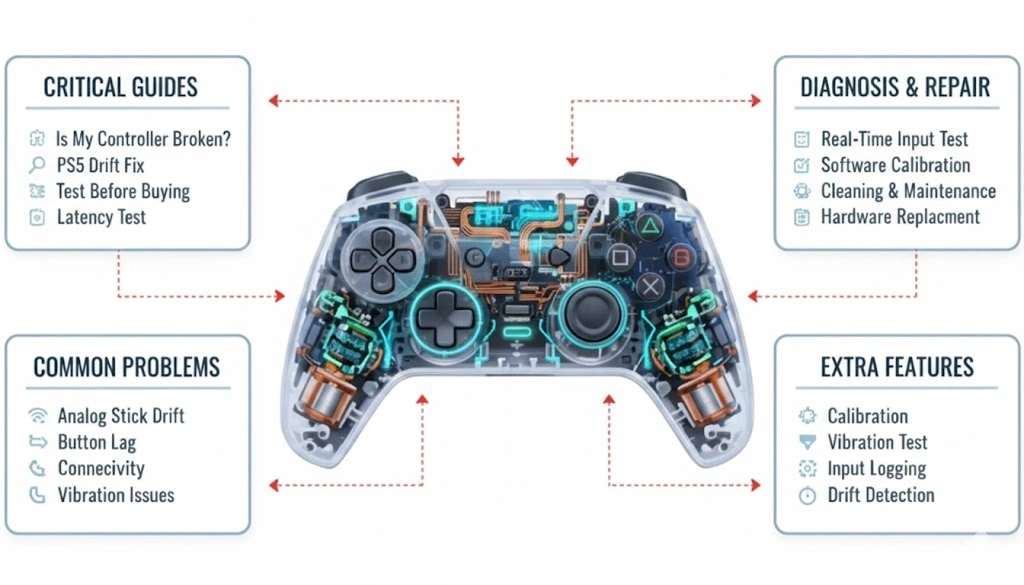
Extra Features Some Testers Have

Advanced gamepad testers offer additional diagnostic and calibration tools:

Calibration

Adjust stick sensitivity or dead zones

Vibration Test

Test haptic motors and rumble feedback

Input Logging

Record button presses and stick movements

Drift Detection

Identify analog stick drift issues

Latency Test

Measure input response time

Health Score

Overall controller health assessment

Multi-Platform

Works on PC, Mac, Linux, Mobile

Export Report

Download detailed test reports

Quick Test

60-second rapid button test mode

Compare Mode

Test 2 controllers side by side

Share Results

Share test results with friends

Auto Detect

Automatically detect controller type
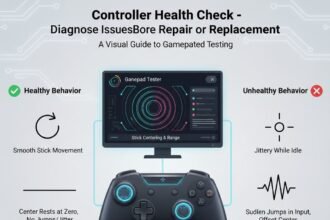
Before You Repair or Replace

Test Before You Repair or Replace

Avoid unnecessary replacement
Identify fixable problems
Save money and time
Confirm repairs worked
Complete Repair Guide
Test
→
Repair
→
Verify

Common Gamepad Problems & Fixes

Using a GamePad Tester for Reliable Diagnosis

Why Use a GamePad Tester?

A GamePad Tester is an essential tool for identifying controller issues before they affect gameplay. By analyzing real-time button inputs, analog stick movement, trigger pressure, and vibration feedback, it helps detect both software and hardware problems accurately.

Common Gamepad Problems and Fixes
1

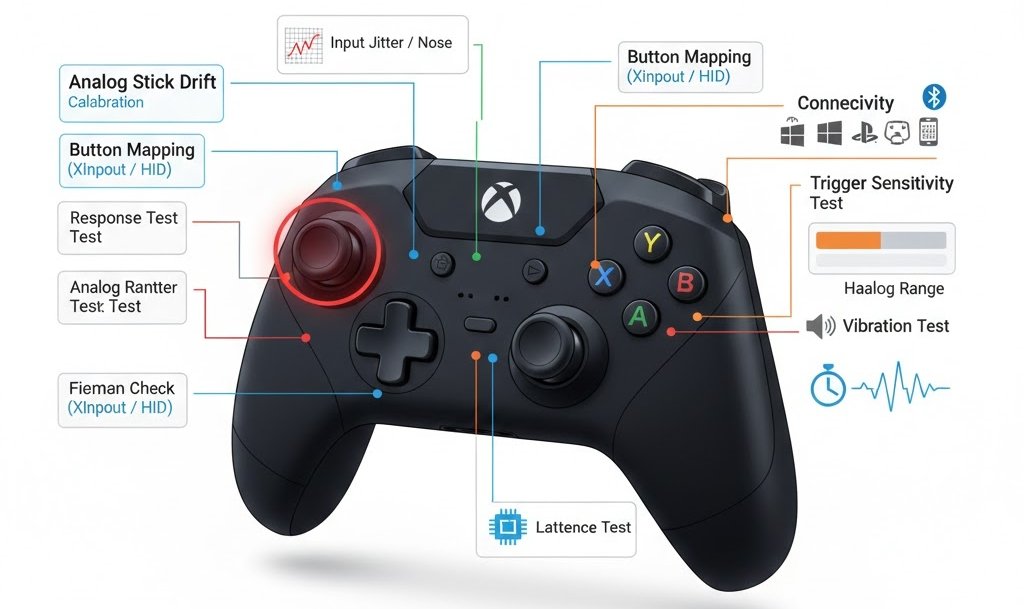
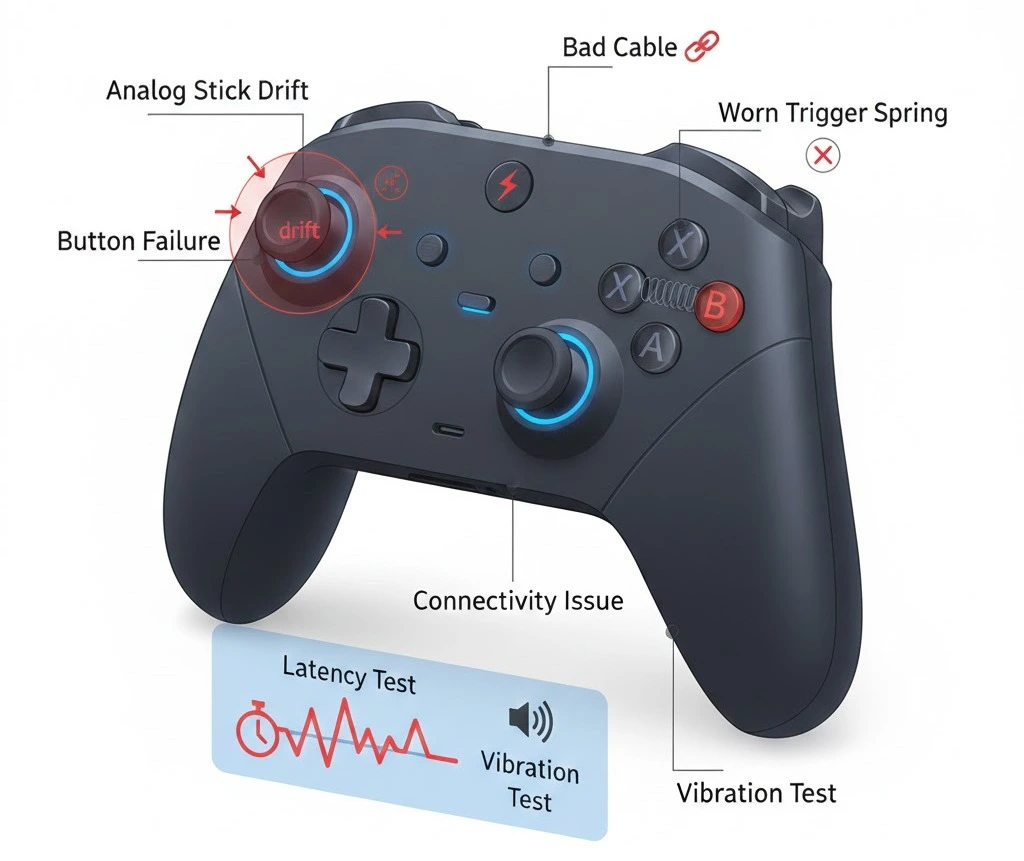
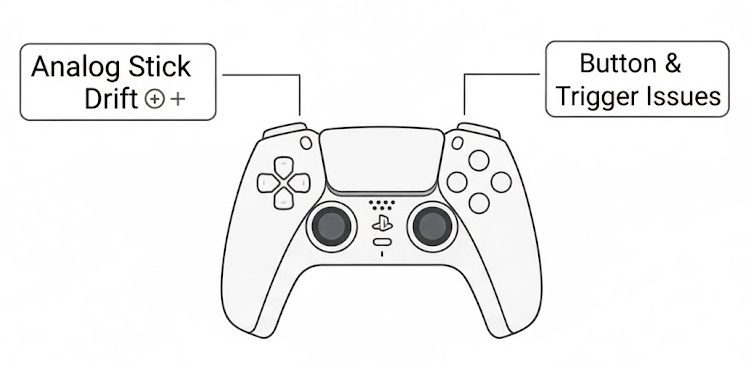
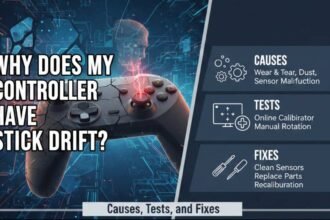
Analog Stick Drift

  • Character moves automatically without input
  • Camera rotates on its own
  • Cursor drifts in menus
  • Uneven analog stick response
→
Solution
  • Open GamePad Tester and leave stick untouched to diagnose
  • Rotate stick in full circles to recalibrate
  • Use compressed air to clean around stick base
  • Apply isopropyl alcohol if debris persists
  • Replace joystick module if drift continues
2

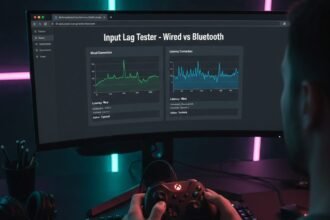
Button Lag & Input Delay

  • Delayed shooting or jumping actions
  • Missed or double inputs registered
  • Inconsistent button responsiveness
  • Noticeable delay between press and action
→
Solution
  • Switch to wired USB connection for lower latency
  • Test button response in GamePad Tester
  • Close background applications
  • Change USB port or cable
  • Update controller firmware and system drivers
3

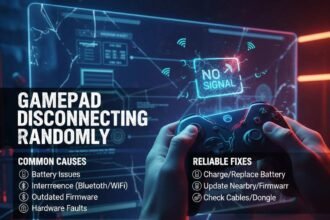
Connectivity Issues

  • Controller not detected by system
  • Random disconnections during use
  • Bluetooth pairing failure
  • Connected but no input registered
→
Solution
  • Fully charge the controller battery
  • Change USB cable or port
  • Re-pair Bluetooth connection
  • Reinstall HID drivers if no input detected
  • Test input detection in GamePad Tester
4

Trigger Calibration Problems

  • Triggers do not reach full range
  • Partial or inconsistent pressure detection
  • Triggers feel unresponsive or sticky
  • Incorrect trigger sensitivity in games
→
Solution
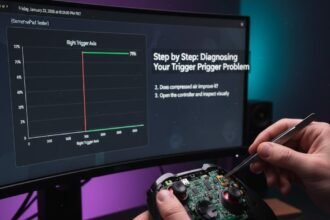
  • Press trigger fully and observe range in tester
  • Recalibrate trigger sensitivity via system settings
  • Clean trigger mechanism with compressed air
  • Replace worn trigger springs if needed
5

Vibration & Haptic Feedback Issues

  • No vibration feedback at all
  • Weak or delayed vibration response
  • Inconsistent haptic patterns
  • One motor works, other doesn't
→
Solution
  • Enable vibration in system settings
  • Activate vibration test in GamePad Tester
  • Update controller firmware
  • Replace vibration motor if unresponsive
6

Controller Detected but No Input

  • Controller appears connected in system
  • No buttons or sticks register input
  • Works in some games but not others
  • LED indicates connection but unresponsive
→
Solution
  • Switch controller input mode (XInput/DirectInput)
  • Enable controller support in game settings
  • Reinstall controller drivers
  • Confirm input activity in GamePad Tester
đŸ› ī¸ Preventive Maintenance
  • Test controller monthly using a GamePad Tester
  • Recalibrate after long gaming sessions
  • Keep controller clean and dry
  • Avoid excessive force on sticks and buttons
  • Use wired mode for competitive gaming
âš ī¸ When to Replace
  • Stick drift persists after calibration
  • Button inputs fail consistently
  • GamePad Tester shows unstable axis readings
  • Repair costs exceed replacement value
✨ Why GamePad Tester Is Essential
📊 Real-time input detection
🔍 Accurate diagnosis of issues
đŸ‘ī¸ Visual confirmation of failures
💡 Better repair decisions
24/7 Live Support

Gamepad Tester Live Support Team 24/7

Get instant assistance with your controller testing needs. Our dedicated support team is available around the clock to help you with any issues.

Professional controller diagnostics support whenever you need it, worldwide.

✆
Instant Live Chat Support
🌍
Global Support Coverage
👨đŸģ‍đŸ’ģī¸
Expert Technical Assistance
đŸ’Ŧ Get Live Support Now
Live Controller Testing
PS5 DualSense đŸ“ļ Connected via Bluetooth
🔋 78% Battery
â–ļī¸ Test Running
Left Stick X:0.00
Left Stick Y:0.00
Deadzone:12%
↑
←
→
↓
D-PAD
L2 Trigger
0%
TOUCHPAD
X: 0 Y: 0
Right Stick X:0.00
Right Stick Y:0.00
Deadzone:8%
FACE BUTTONS
R2 Trigger
0%
Test Mode:
Vibration Test:
đŸ“ŗ Ready
📊 Live Test Results
✓ 12 Passed ✕ 0 Failed âąī¸ 0:45
🎮
Stick Drift Test
✓ No drift detected
⚡
Button Response
✓ 15ms average
đŸ“ŗ
Vibration Test
✓ Both motors working
🔄
Trigger Calibration
Calibrating...
📡 Live Test Feed
12:45:23Controller connected successfully
12:45:25Starting analog stick calibration...
12:45:30Left stick deadzone: 12% | Right stick deadzone: 8%
12:45:35Button response test in progress...
12:45:40â–ŗ Button: 14ms | ○ Button: 16ms | ✕ Button: 15ms | □ Button: 13ms

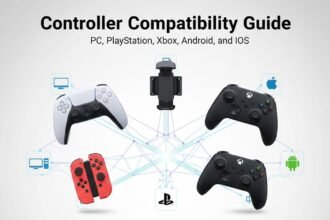
Gamepad Tester for Different Platforms

Test, Troubleshoot & Optimize Your Controller

PC & Consoles

Windows

  • Input APIs: XInput/HID
  • Detections: Drift, Lag, Vibration

PlayStation

  • Proprietary Protocol
  • Detections: Stick/Button, Basic Haptics
  • Limitation: No Adaptive Triggers
Mobile & OS

Android

  • Bluetooth/USB OTG
  • Detections: Latency, Mapping

iOS

  • MFi/Bluetooth
  • Detections: Basic Input
  • Limitation: No Haptics/Triggers
Cross-Platform Tips

Test Separately

Test on each platform individually

Recalibrate

After switching devices

Save Profiles

Platform-specific calibration

Wired Connection

Use when possible for accuracy

Why Platform-Specific Testing Matters

Verify Compatibility
Detect Issues Early
Optimize Performance
Avoid False Replacements

GamePad Tester Guides, Diagnosis & Repair Solutions

Complete troubleshooting resources to diagnose, fix, and optimize your gaming controllers

GamePad Tester Guides
Is My Controller Broken

Is My Controller Broken?

Problem Diagnosis – Interactive Quiz + GamePad Tester

How This Diagnosis Works

  • Real-time input data from GamePad Tester
  • Simple yes/no diagnostic questions

Key Checks Performed

  • Stick center stability
  • Button response consistency
  • Trigger range accuracy
  • Input detection status
  • Connection stability

Diagnosis Outcomes

Not Broken: Calibration or software issue
Repairable: Minor hardware wear
Likely Broken: Severe hardware failure

PS5 Controller Drift Fix

Repair Guide – Tutorial + Before/After Test

Before Test

  1. Open GamePad Tester
  2. Do not touch stick
  3. Observe center axis

If movement, drift is present.

Cleaning Fix

  1. Power off controller
  2. Use compressed air
  3. Apply isopropyl alcohol
  4. Dry fully
PS5 Controller

Calibration Fix

  1. Rotate sticks fully
  2. Recalibrate
  3. Adjust deadzone

After Test

  1. Reopen GamePad Tester
  2. Verify: Axis returns to center
  3. Stable values

If drift remains, replacement recommended.

BEFORE DRIFT

→

AFTER FIX

Why This Matters

Reduce Replacements, Build Trust

Xbox Controller Not Detected

Troubleshooting – Diagnostic Guide + Connection Tester

Step 1: Connection Test

  • Connect controller via USB
  • Open the GamePad Tester
  • Check if any input detected

Step 2: If Controller Is Not Detected

Possible causes:

  • Missing drivers
  • Faulty cable
  • USB port issues
  • Power supply problems

Step 3: Fixes

  • Try a different USB cable
  • Change USB port
  • Reinstall Xbox controller drivers
  • Update Windows

Step 4: Verification

  • Button input
  • Stick movement
  • Trigger range

If inputs appear correctly, the issue is resolved.

Diagnose, Fix, & Optimize Your Gaming Experience!

GamePad Tester Guides & Insights

Gamepad Support & FAQs

Find answers to common questions about testing and troubleshooting your controller

What is a gamepad tester and how does it work?

A gamepad tester is an online or software tool that checks if all buttons, joysticks, triggers, and vibration features on your controller are working properly. It detects input signals and helps troubleshoot issues.

Which controllers can I test with this tool?

Our tester supports most popular controllers, including PS5, PS4, Xbox Series X/S, Xbox One, Nintendo Switch Pro, and many third-party controllers. Compatibility details are listed on each page.

Can I test my controller online for free?

Yes! You can use our free online gamepad tester without downloading any software. Simply connect your controller and follow the on-screen instructions.

How do I fix a drifting joystick detected by the tester?

Joystick drift is common. We provide step-by-step guides to recalibrate your controller, clean the joystick module, or replace worn-out parts.

Why is my controller not detected by the tester?

This may happen due to loose connections, outdated drivers, or incompatible controllers. Check your USB/Bluetooth connection and ensure your system recognizes the controller.

Can I test vibration and triggers with this tool?

Yes! Our tester checks vibration motors, trigger response, and button pressure sensitivity to ensure your controller performs correctly.

Does this tester work on mobile devices?

Certain controllers can be tested on Android and iOS using our mobile-friendly tester or downloadable apps, depending on the device and connection method.

Can this tool help me calibrate my controller?

Yes, our online and downloadable tester includes calibration features to correct drift, dead zones, and response delays.

Is there a downloadable version of the tester?

Yes! For offline testing and more advanced features, you can download our software for Windows, macOS, and mobile devices.

How often should I test my gamepad?

Regular testing is recommended, especially if you notice lag, drift, or unresponsive buttons. Testing before gaming sessions or after long periods of use helps maintain controller performance and longevity.

Get In Touch

Address

Servcorp Coworking Spaces
17 State Street, 40th Floor
Financial District (Lower Manhattan)
New York, NY 10004
United States

Nearby Landmark: Battery Park, Statue of Liberty Ferry Terminal